How to Protect Your Personal Information Online

In 2023, most Americans surveyed said they had little control over the data collected about them. That same year, 81% of Americans felt this way, while 67% knew little or nothing about data privacy laws. Those results help explain why online privacy can feel uncertain.
How to protect personal information online starts with knowing how details spread. Account use, social posts and data collection can share your information with other people and companies. You cannot control every copy, but you can reduce what you expose and who can see it.
A few practical habits can limit common risks without promising total control. You can make meaningful changes without avoiding the internet or deleting every account. Start with the accounts you use most, since securing them limits the damage a stolen login can cause.
How to Protect Personal Information Online: Secure Your Accounts
A unique password for every account makes a stolen login less useful elsewhere. Reused passwords let an attacker try one leaked password on several online accounts, including email and financial services.
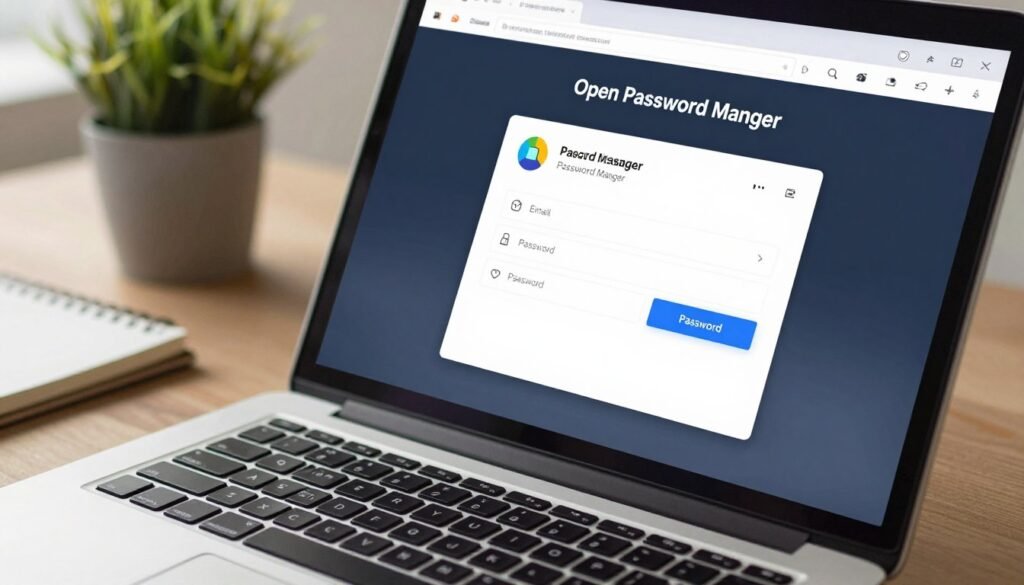
Protecting personal information online in cybersecurity starts with blocking reused credentials and unauthorized account access. A password manager can make unique passwords easier to create and store. Use one distinct password for each account, and change it when you have evidence of compromise.
Account recovery deserves care, too: an attacker who controls your recovery email may regain access after you change a password.
Use unique passwords and a password manager
A password manager creates and saves long, hard-to-guess passwords for your accounts. You need to remember its main password, not every saved one. Choose a manager with a strong sign-in method and keep its recovery options current.
NIST’s 2025 guidance sets an 8-character minimum for passwords you create. It rejects forced, scheduled password changes and advises a change when there is evidence of compromise. Login fields should allow pasted passwords, with no arbitrary rules about mixing character types.
Add MFA and choose a phishing-resistant option
Multi-factor authentication (MFA) asks you to prove your identity in more than one way. Turn it on where available. An authenticator app or security key can resist phishing better than an SMS code, which a SIM swap may intercept.
NIST’s 2025 standard defines three assurance levels for remote authentication. Applications assessed at AAL2 must offer a phishing-resistant option. AAL3 requires one with a non-exportable authentication key and proof of two distinct factors. Those levels describe service requirements, not options found on every account.
A passkey is a sign-in credential that uses a private key stored on your device and a matching public key held by the service. This public-key cryptography method helps stop fake sign-in pages from capturing your login. As of 2026, passkeys work on iOS 16+, macOS Ventura+, Android 9+ and Windows 11.
Give each home-computer user a separate account
The best practice for user accounts on a home computer is a separate account for each person. Give each person standard permissions for daily tasks, and reserve administrator access for changes. Separate accounts keep one person’s files and settings apart from others.
Start with this short account checklist:
- Use a unique password for each account.
- Store passwords in a password manager.
- Turn on MFA wherever it is offered.
- Use a passkey where available.
As of 2026, Google, Microsoft, Apple, PayPal, Amazon and GitHub offer passkey sign-in. If a service offers a passkey, use it for that account rather than reusing a password.
How Can You Protect Information on Your Physical Devices?
A phone’s automatic lock and remote-wipe feature can protect data even after the device leaves your hands. Fast locking can keep a stranger from opening stored information if you lose your phone.

Set your phone to lock on its own and turn on a way to locate or erase it remotely. Use biometric unlocking, such as a fingerprint or face scan, if your device offers it. Apple’s Find My iPhone can help locate a lost iPhone.
Secure a phone that could be lost or stolen
Check that you can reach the phone’s location tools from another device. Learn where the remote-wipe option sits before an emergency. If the phone goes missing and you cannot recover it, wiping it can help protect the information stored on it.
Download apps from trusted stores such as the App Store or Google Play. An app may ask for access to your contacts, photos, location or microphone. Grant only the access that fits the app’s purpose.
Keep computers and apps updated
Install updates for your operating system, browser and apps promptly. Software updates often patch security flaws that attackers may exploit to install malware or access data. Turn on automatic updates when that option is available.
Review the apps you no longer use and close accounts you have left behind. Deleting an app from a device does not delete its account or the data tied to it. Before deleting an unused app, delete its account and confirm that the account closure is complete.
How Do Phishing and Account Takeover Work?
A reused password, a deceptive login link or a stolen phone number can each become an entry point to an account. Account takeover happens when someone gains control of an account without permission.
In 2025, the FBI’s Internet Crime Complaint Center received more than 5,100 account-takeover fraud complaints involving financial, payroll and health savings accounts. Reported losses topped $262 million. Social media accounts face the same kinds of phishing attacks and credential theft.
Hackers may try leaked passwords on other sites, send phishing links that capture login details, or use SIM swaps to intercept SMS codes. A takeover can continue after the first login. Attackers may change the account email, add an MFA method they control, or create email-forwarding rules.
Watch for signs that someone is trying to enter or keep control of an account. These common attack methods have different warning signs:
| Attack method | What the attacker exploits | Likely account risk | Practical warning sign |
|---|---|---|---|
| Credential stuffing | Leaked, reused passwords | Login on another site | Unfamiliar sign-in alert |
| Phishing links | Fake login page | Stolen login details | Unexpected sign-in link |
| SIM swaps | Control of your phone number | Intercepted SMS code | Phone loses service suddenly |
Treat an unexpected MFA prompt as a warning and deny it rather than approving it.
A public birthday, address or travel update can give strangers details that help them impersonate or target you. Less public detail means fewer clues are available to people outside your circle.
Keep your home address, phone number, full birth date and travel plans off public posts. A public profile can expose information to strangers, even when a post seems harmless. Set your audience to people you know and trust.
Limit profile details and post visibility
Review your profile for personal details you do not need to share. Check the audience for older posts as well as new ones. A private account does not always make every detail private, so check each platform’s settings.
Social media companies and apps may collect data beyond what appears on your profile. Check whether an app can access your contacts, location, photos or calendar. Turn off permissions that the app does not need for its main purpose.
Review app accounts, permissions and messaging privacy
WhatsApp uses end-to-end encryption for message contents, but Meta can still see metadata. That can include who is communicating, when and how often, along with location and device details. Signal and Threema are other messaging options, but no one app is the safest choice for everyone.
Use this quick review to reduce extra exposure:
- Remove profile details you do not need to share.
- Narrow who can see your posts.
- Review app permissions, including calendar access.
- Delete unused accounts before removing their apps.
Deleting an app alone does not close its account. Review who can see your social posts after every major change to a platform’s privacy settings.
How Can You Secure Your Internet Connection?
For banking or shopping, a trusted network is a better choice than an unknown public Wi-Fi hotspot. Public Wi-Fi may be unencrypted, which can leave traffic open to interception.
Wait for a trusted connection before handling sensitive information when you can. A home network you control is a better choice for banking or entering credit card details. If you are away, use your phone’s hotspot or a VPN on public Wi-Fi.
A VPN encrypts traffic between your device and the VPN service, and it can mask your device’s IP address. It does not make every website trustworthy. Choose a VPN service carefully, since it handles the traffic leaving your device.
HTTPS encrypts data exchanged between a browser and a website. That helps protect information in transit, but it does not prove the site is honest. A fake store can use HTTPS, too.
Tracker-blocking features in browsers such as Firefox and Brave can limit some tracking while you browse. They do not hide every action or remove information that a website already holds. Check the exact domain before entering payment details, even when the address begins with HTTPS.
How Can You Remove Personal Information From the Internet?
To remove yourself from the internet for free, start by finding the people-search sites that display your name, address or phone number. Each listing may need its own opt-out request.
Data brokers may collect names, birth dates, phone numbers, addresses, land and marriage records, and social media profiles. Search your name with a city or state, then check the people-search results for your details. How to erase an address from the internet begins with finding each listing and requesting its removal.
LifeLock can scan common people-search sites and submit opt-out requests, but you must raise a request for each record it finds. Its data-removal service focuses on 33 websites, while Incogni covers over 450. Broker removal can make details harder to find, but it cannot guarantee full erasure or prevent identity theft.
Here is how the main options compare:
| Method | Coverage | How the request is handled | Limitation |
|---|---|---|---|
| LifeLock Privacy Monitor | 33 websites | Scans and submits opt-outs; you request removal for each record | Included with listed LifeLock with Norton 360 plans |
| Incogni | Over 450 websites | Data-removal service sends requests | Does not guarantee full erasure |
| Google Search removal | Qualifying personal details in Search | Google reviews requests and may ask for more information | Removes Search results, not the source page |
LifeLock’s service targets names, current and past addresses, phone and email details, birth dates, family ties, work history and education history. Plans include antivirus protection, a password manager and a VPN. In 2026, LifeLock with Norton 360 Select Plus was $99.99 per year.
In 2026, LifeLock with Norton 360 Advantage was $24.99 per month or $199.99 per year. LifeLock with Norton 360 Ultimate Plus was $34.99 per month or $299.99 per year. Keep a dated record of each opt-out request so you can check whether a listing returns.
What Should You Do After a Data Breach or Account Alert?
If a breach exposes a password or card number, act on the affected account first. Quick action can limit what someone does with exposed information.
Use these four steps to check accounts and limit possible financial harm.
- Change the affected password.
- Contact your bank or card issuer.
- Review transactions for charges you do not recognize.
- Check credit reports for unfamiliar accounts or inquiries.
A credit freeze or fraud alert can help reduce identity-theft risk. Neither one replaces checking the accounts and records tied to the alert.
The Yahoo breach affected 3 billion accounts during 2013-2014. LifeLock Privacy Monitor does not act on alerts about changes to a credit score, 401(k), investments or home title; it tells you to investigate. Report an unfamiliar charge to the bank or card issuer as soon as you spot it.
Conclusion
A few consistent habits can make everyday online activity less exposed. Unique sign-ins and thoughtful sharing can reduce common risks, though no set of steps can promise complete protection.
Choose the email, financial or social account that would cause the most trouble if someone took it over. Review its security and recovery settings today, and check that the contact details still belong to you.
Pick one important account today and confirm that its sign-in and recovery options are current.