
How to Back Up Important Files on Your Computer

A separate copy of your important information can turn a failed drive or accidental deletion into a recovery task instead of a permanent loss. A backup is a separate copy kept so you can recover the original after damage, an accidental deletion, or a failed drive. It gives you a way to get back work, family photos, and other information that would be hard to replace.
Syncing folders can help keep files alike across devices, but sync is not automatically a complete backup. A change or deletion may carry over to every synced location. You can begin with an external drive, cloud storage, or both, based on what you need to protect and how you like to work.
You do not need a complex system to get started. A small routine that runs on its own is easier to keep than a plan you rarely use. The safest starting point is an automatic copy that you can successfully restore.
What Does a Reliable Backup Protect?
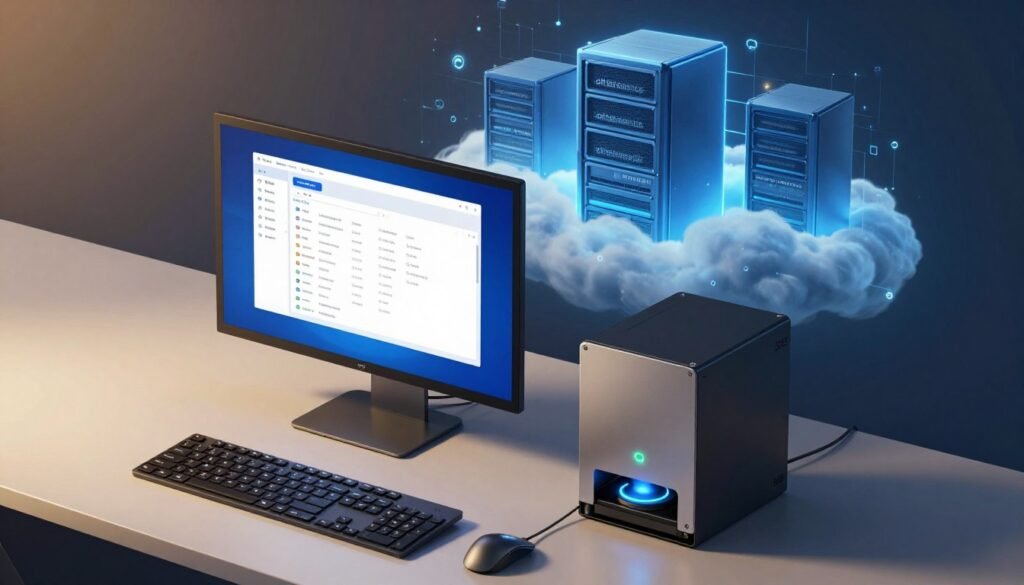
A reliable setup keeps more than one recoverable copy, with at least one separated from the computer’s physical location. The 3-2-1 backup rule is a strategy that keeps three copies of important data on two kinds of storage, with at least one copy stored off-site.
The 3-2-1 backup rule calls for three copies, two storage types, and one off-site copy. In 2026, this remains a practical way to reduce the chance that one failure destroys every copy. A local backup helps when a drive fails; an off-site backup helps when a local disaster affects both the computer and nearby storage.
| Type | What it copies | Useful for | Key limitation |
|---|---|---|---|
| File backup | Chosen files and folders | Recovering personal work | Does not copy Windows programs |
| System image | Entire Windows drive, including system and program files | Restoring a full computer setup | Can take more space |
| Sync | Updates between selected locations | Keeping working files alike | Can copy unwanted changes |
A second partition on the same internal disk is not a separate backup. Damage to that disk can affect both partitions, and malware may reach both. A three-copy, two-storage, one-off-site rule spreads risk across separate places and storage types.
Keep three copies of important data on two kinds of storage, with one copy off-site.
A practical setup has three layers:
- The original files on your computer.
- A local copy on a separate drive or network device.
- An off-site copy in a different physical location.
A practical backup drive is about two to three times the capacity of your computer’s drive. A 5,400-rpm external hard drive is adequate for routine backups, even if faster drives shorten copy times. Keep the original files in place after copying them, so the backup remains an additional copy rather than the only copy.
Which Files and Folders Should You Include?
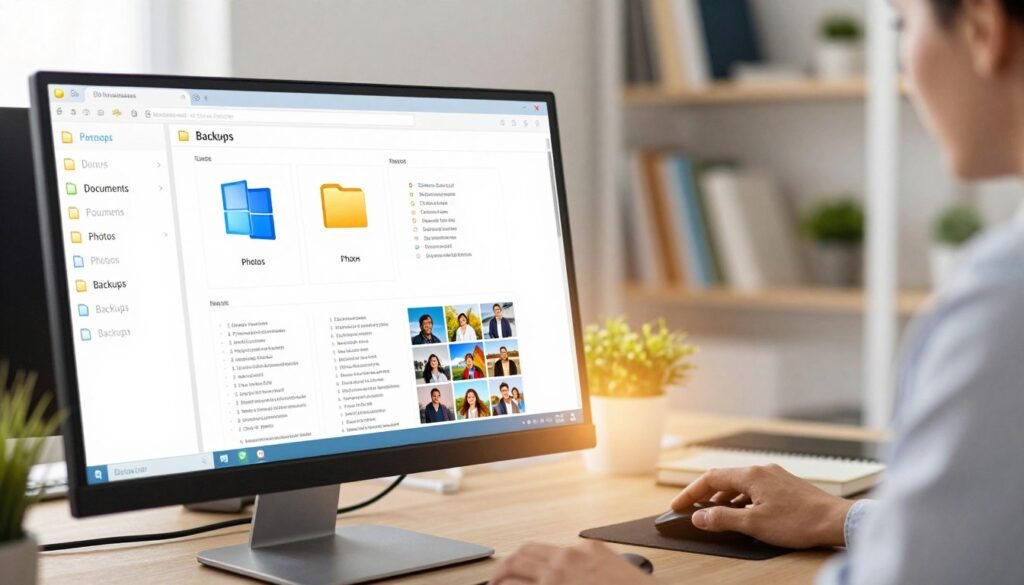
Start with files you created or would struggle to replace, rather than trying to copy every Windows system folder. Personal work and memories are usually the best first choices, since Windows can be reinstalled but lost photos may be gone for good.
Choose files you could not easily recreate. On a Windows laptop, backing up laptop data on Windows 11 uses the same folder-selection process as on a desktop. Pay extra attention to work saved outside the usual user folders, such as a folder created directly on the C: drive.
Start With Your Personal Folders
A Windows user folder is commonly found at C:\Users\USERNAME, with your account name replacing USERNAME. It often holds Documents, Pictures, Downloads, Desktop, Music, and Videos. Open each folder and look for files you want to keep, including items saved on the desktop.
Check custom folders too. You might keep schoolwork in a folder on the desktop, save tax records in a separate drive folder, or store creative projects under a program’s name. Add those places if they hold personal files that matter.
Check for Data Outside the Usual Folders
AppData is a hidden subfolder in your Windows user folder. Some programs keep settings or work there, but copying it does not always make those items easy to restore. Identify application-specific data that would be difficult to recreate before adding it.
Browser bookmarks may sync through a browser account, so check that sync is on and working. Email stored on a mail server may return when you sign in again, while locally stored email may need its own copy. Files in OneDrive or other synced folders also need attention, since sync alone may repeat an unwanted change.
Use this short checklist to catch information outside your main folders:
- Personal documents and photos.
- Custom project folders.
- Browser or email data kept locally.
- Application-specific data that would be difficult to recreate.
Before setting a schedule, open each chosen folder and confirm it contains the files you expect.
Where Should You Store Backup Copies?
A local external drive and a cloud copy protect against different problems, so using both is stronger than relying on either alone. Keep one copy nearby for quick recovery and another away from home or work for a local disaster.
A local copy plus an off-site copy covers more risks than either location alone. An external hard drive or SSD is simple to connect and can restore large files without an internet connection. A network-attached storage device, or NAS, holds files on your home or office network, but it may share the computer’s exposure to theft, fire, or malware.
| Storage | Location | Main advantage | Main risk |
|---|---|---|---|
| External drive | Near the computer | Fast local recovery | Theft, fire, or malware nearby |
| NAS | On a local network | Available to network devices | Local damage can affect it |
| Cloud storage | Provider’s remote servers | Off-site access | Account or quota problems |
Local Storage for Quick Recovery
Local storage is handy when you need to restore a large folder or recover files without waiting for an internet connection. An external drive can stay unplugged between backup runs, which limits its exposure to some computer problems. A NAS can serve several computers, but it still sits in the same building.
Neither option replaces an off-site backup. A fire, flood, or theft can affect the computer and a nearby drive at once. Choose a second destination in another physical location to guard against that kind of loss.
Cloud Storage for an Off-Site Copy
Cloud storage keeps a copy away from your computer’s physical location. Ordinary sync is useful for access across devices, but it can also repeat unwanted changes or corruption. Look for a backup feature that keeps older versions if you need a way back after a mistake.
A Google Account includes up to 15 GB of shared storage across Gmail, Google Drive, and Google Photos in 2026. When the account exceeds its quota, it cannot upload new Drive files or back up new Photos until usage falls under the limit. If the account stays over quota for two years or longer, content may be removed after Google gives at least three months’ notice.
Check the account’s remaining capacity before sending a large folder to a cloud destination.
How to Back Up Computer Files With Windows Backup
Windows Backup is a built-in way to sync selected folders and settings to OneDrive, provided you sign in with a personal Microsoft account. It is not a full system-image backup, so it does not create a copy of the whole Windows drive.
Windows Backup needs a personal Microsoft account, not a work or school account. In 2026, a free Microsoft account includes 5 GB of OneDrive storage. Windows Backup can sync selected Desktop, Documents, Pictures, Videos, and Music folders, plus selected Windows settings.
To set it up, open Start and search for Windows Backup. Sign in with your personal Microsoft account, then expand Folders. Turn on the folders you need, review the settings and preferences, and select Back up.
Settings can include accessibility choices, Wi-Fi networks and passwords, personalization, language preferences, and installed-app preferences. Those settings can help make a new PC feel familiar, but the app does not copy installed programs as a system image would. Five gigabytes may not hold a large photo or video collection.
Check the app for backup status, or open Settings and go to Accounts > Windows backup. A new PC can restore supported content when you sign in with the same account. That does not mean every file has finished syncing, so check the status shown in Windows Backup after setup instead of assuming every selected folder finished syncing.
How to Back Up Windows Files to an External Drive
File History is Windows’ built-in option for automatically copying personal libraries to an external drive or network location. It works without OneDrive, making it a useful way to keep a local backup.
Connect the destination drive before turning on File History. Open Control Panel, go to System and Security > File History, select the drive, and turn File History on. The drive must be available when a scheduled copy runs, or new changes will not reach it.
File History saves libraries such as Documents, Pictures, Videos, and Music. If another folder needs coverage, add it to a library first. You can also choose a network location instead of an external drive.
For Windows 10, open Start and go to Settings > Update & Security > Backup > Add a Drive. Windows 11 users who want to back up to an external drive instead of OneDrive can follow the Control Panel steps above. Confirm that File History recognizes the destination before relying on it.
Use these core setup actions:
- Connect the external drive.
- Choose it in File History.
- Check the included libraries.
- Confirm that backup is on.
Reconnect the external drive after setup and confirm File History still identifies it as the backup destination.
Can FreeFileSync Automate Local and Cloud Copies?
FreeFileSync can automate file synchronization across local drives, network shares, and Google Drive, with a history of changed or deleted files. That history can help when an update or deletion was a mistake.
Synchronization is not the same as an independent backup. A tool may copy a deletion to another location, so check how it handles deleted files before you rely on it. Keep a separate copy that the sync process cannot change.
What FreeFileSync Can Synchronize
FreeFileSync can compare folders on local drives, network shares, and Google Drive. It can keep a history of files that changed or were deleted. That gives you more control than basic folder sync, but you should still learn how the chosen settings affect older copies.
For free backup software, the best fit depends on whether you need sync or a separate backup. FreeFileSync is a free personal file-synchronization option. Duplicati is a free, open-source backup tool that can send copies to external drives and cloud services.
Check the Edition and Practical Limits
FreeFileSync runs on Windows 10 and Windows 11 in 2026. Its standard edition is for personal use by private individuals; commercial users and legal entities need its Business Edition.
FreeFileSync has no artificial limit on the number of files it can synchronize. Available memory sets the practical limit, at roughly one million file pairs per 1 GB of RAM. Large collections may need more memory to compare smoothly.
Backblaze, IDrive, and Acronis True Image are examples of named cloud-backup services. They are different products from FreeFileSync, so compare what each tool copies and how it handles older versions. Choose a tool whose deletion and version-history behavior you have checked before trusting it with the only extra copy.
How Often Should Backups Run?
Back up at least daily when you change important documents every day, and use more frequent copies for data that changes repeatedly. Match the interval to how much recent work you can afford to lose.
Files that change daily need at least one copy each day. Data logs that change several times a day may need real-time backups. Scheduled software can run from hourly to yearly, depending on the files and how often they change.
A work-in-progress report may need a daily copy because you revise it often. An archive of finished projects may change only once in several months, so it needs fewer updates. The schedule should fit the work, not just the calendar.
Automatic backup software can run while you work, as long as the destination is available. A disconnected external drive cannot receive new copies. A backup app that is not scheduled will not capture new edits on its own.
Start with a schedule you can keep running, then adjust it if your work changes. Check that the next run completes while the destination is available.
How Do You Restore Files or Move to a New PC?
A backup is useful only if you can retrieve the needed version without overwriting something you still want. Use a separate destination when you are unsure which copy is correct.
Restoring over a current file replaces it, and that change cannot be undone. File History can restore earlier versions of files and folders, while Windows Backup and Windows-to-Windows transfer cover different needs.
Restore a Previous File Version
Search Windows for Restore your files with File History. Use the arrows to browse available versions, select the file or folder, then choose Restore. Choose Restore to if you want to place the older copy somewhere else instead.
Restoring over the current version replaces that file and cannot be undone. If you may still need the current copy, save it somewhere else before restoring. This gives you room to compare both versions without losing the newer one.
Plan a Move to a New Windows PC
Microsoft’s former direct transfer feature for moving files and settings to a new Windows PC is no longer available. Its guidance points users to Windows Backup and Restore. The Windows-to-Windows transfer feature described by Microsoft requires a new PC running Windows 11, version 2024 or later; the old PC can run Windows 10 or Windows 11.
The transfer does not include OneDrive files, installed applications, saved passwords, sign-in credentials, or BitLocker-encrypted drives. Plan to copy or reinstall excluded items separately. A successful move of personal files does not mean every part of the old PC has moved.
| Option | What it helps recover or move | Requirement | Important limit |
|---|---|---|---|
| File History restore | Earlier file and folder versions | Available File History copy | Restore can replace the current version |
| Windows Backup and Restore | Selected files and settings | Same Microsoft account for supported restore | Does not reinstall applications |
| Windows-to-Windows transfer | Files and settings between PCs | New PC: Windows 11 version 2024 or later | Excludes apps, passwords, and OneDrive files |
Before restoring over a current file, save that current version somewhere else if it may still matter.
How to Keep a Backup Working on Windows 10 and 11
A backup routine needs occasional checks because a disconnected drive, failed run, or update-related issue can leave the newest copy out of date. Check the copy itself, not just the app’s setup screen.
Windows 10 stopped receiving free Windows Update software updates, technical assistance, and security fixes after October 14, 2025. Windows 10 still runs, but missing security fixes can leave the operating system more exposed over time. Keep Windows current where it remains supported.
Check that the backup destination remains available and that recent runs completed. Try opening a few copied files, then test a restore with a file that will not disrupt your current work. A backup that cannot be read will not help during recovery.
Windows 11’s optional update KB5124010 in September 2026 addressed a File History issue. The issue could stop backups or restores to external drives or network locations and show “Reconnect your drive.” If File History shows that message after a recent update, check for KB5124010 and confirm the destination connection.
A backup that has not completed or cannot be opened may leave your newest work unprotected.
Keep a simple note of the last successful backup date and the destination used. If that date falls behind your recent work, the copy needs attention.
Conclusion
The most useful backup plan is one that runs reliably and gives you files you can restore. Keep a separate copy rather than trusting one device with every important file. Test recovery before a drive failure makes the choice for you.
You can start today with an external drive or your chosen backup app. Select the files that matter most, wait for the first copy to finish, and open a few copied items. Start with your most irreplaceable folder, make its first separate copy, and confirm you can open it.